
Step-by-Step Guide to Installing Windows 10 and Office 2007
If you’re planning to install Windows yourself, or just want to get familiar with the Windows installation process, the tutorial series “Step-by-Step Guide to Installing Windows 10 and Office 2007” provides clear and practical instructions. It walks you through the entire process of installing Windows 10, system drivers, and Office 2007 using a dedicated bootable Windows installation USB drive.
Whether you’re installing the operating system on a brand-new computer for the first time, or reinstalling it on an older one due to system issues, you can turn to this guide for help. This tutorial is designed to be easy to follow and richly illustrated. Even if you’ve never performed a system installation before, as long as you follow the tutorial step by step, you’ll be able to get started with ease and complete the entire process on your own.
The tutorial is divided into six step-by-step guides, arranged in the order of the actual installation process, along with an additional appendix.
Click on the following articles to read.
Bundled Windows 10 installation USB
Portable Windows 10 System
—Put Your Computer in Your Pocket
Product Introduction
This is a fully installed Windows 10 operating system on a USB drive, pre-loaded with Microsoft Office Professional 2007 and Adobe Acrobat XI Pro 11.0.23. Insert the USB drive into any compatible computer, select it as the boot device, and access your personal Windows desktop instantly. You can install your favorite software, save files, and customize settings just as you would on a regular PC. No matter where you are—on a business trip, traveling, or using another computer—you can continue working in your familiar environment when using the drive.
√ Plug and play
√ Runs independently of the local system
√ The original system remains completely unaffected
Product Features
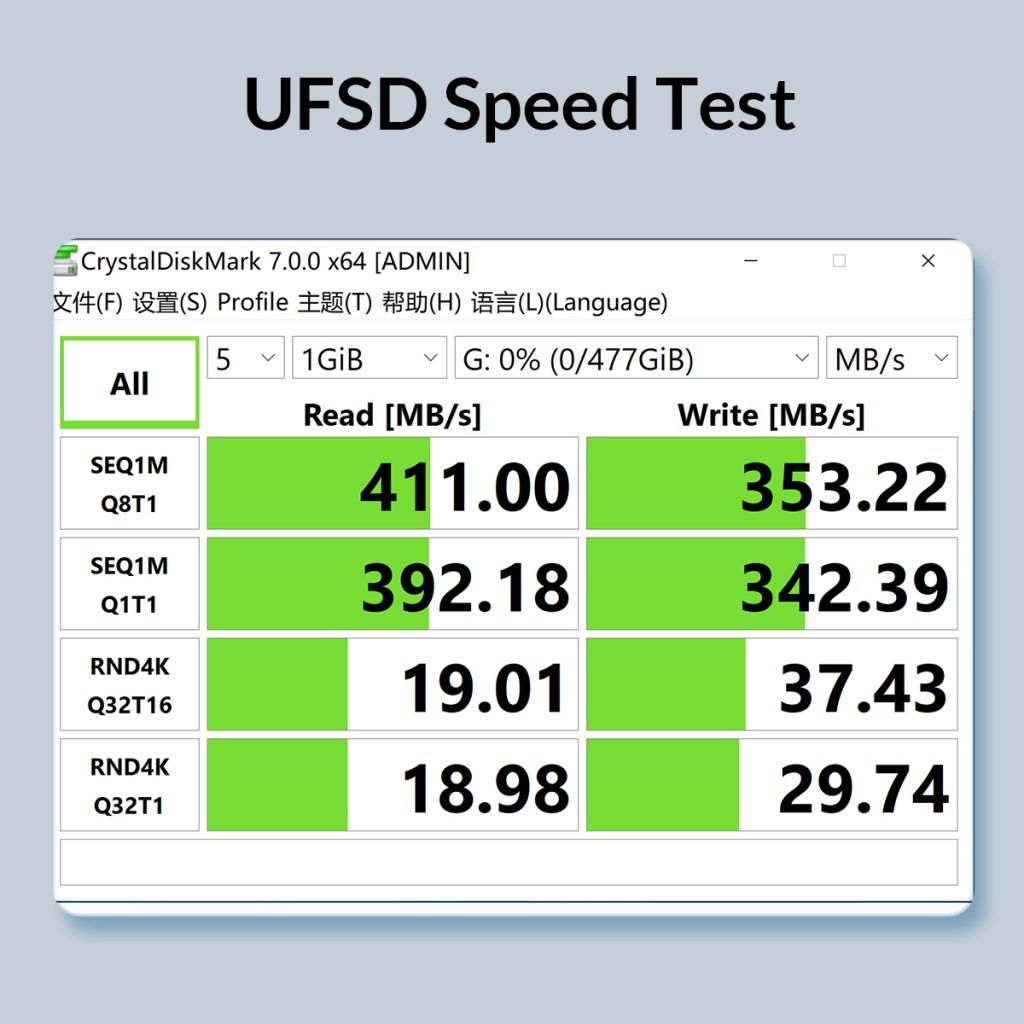
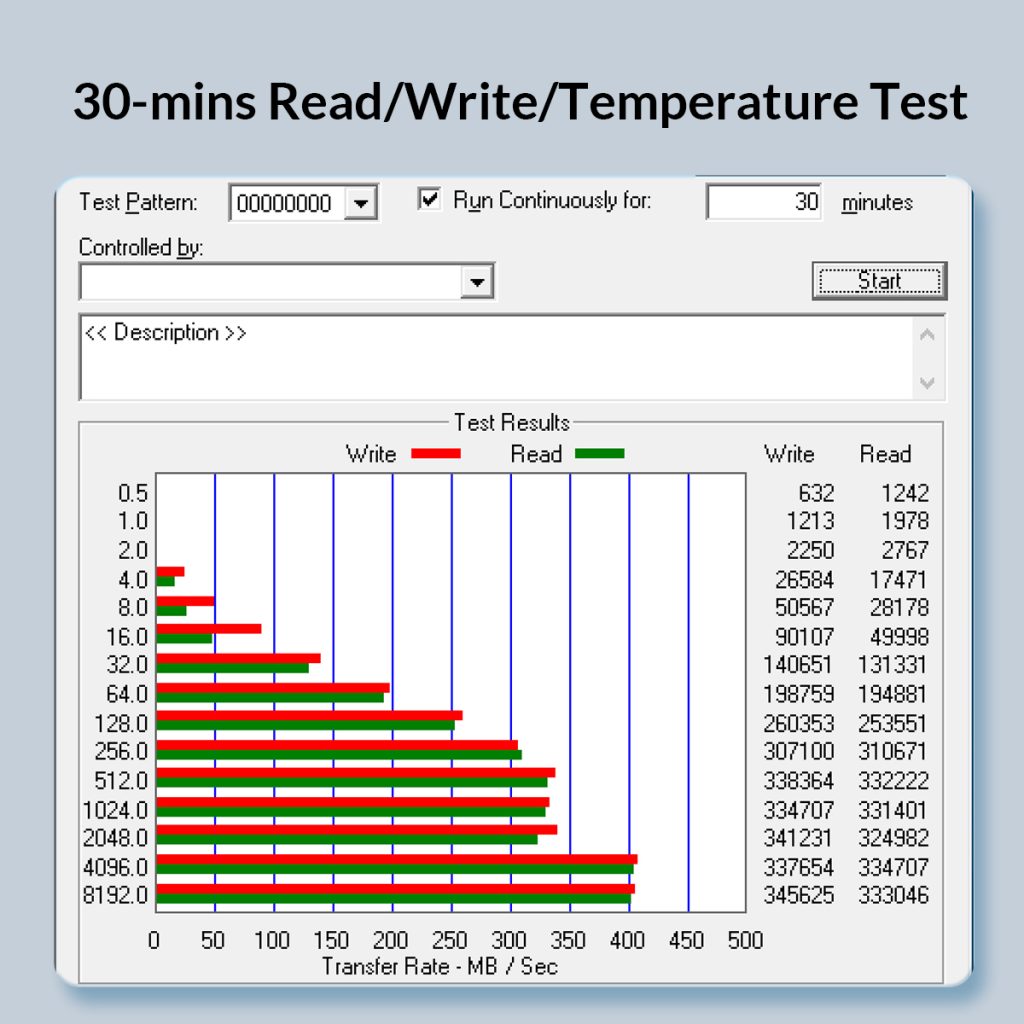
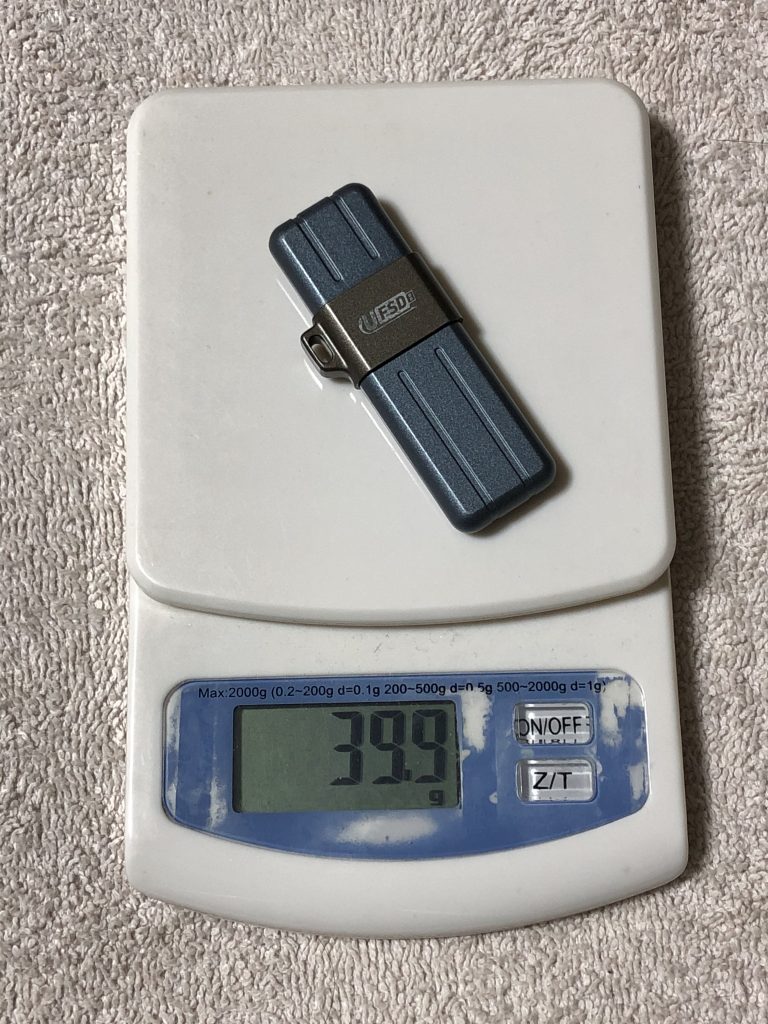
● Adopts the ORICO UFSD-X flash drive featuring an alloy casing, offering up to 400 MB/s read and 350 MB/s write speeds, with stable file transfer and no speed drops.
● Supports both BIOS and UEFI boot modes, compatible with old and new computers
● Integrated SDI driver installation tool with automatic hardware detection
● Pre-installed with Office 2007 and Acrobat XI Pro
● Plug and play, does not affect the original computer system
Who Is It For?
√ People who frequently travel for business or temporarily use other people’s computers
√ Users who need to switch working environments between different computers
√ Those who want a second operating system without the hassle of installing it on a local hard drive
√ Users who want an emergency backup system
√ Those who need to repair their local system or urgently back up data
System Information
Operating System: Windows 10 Pro 64-bit (English version)
Version: 21H2 (or 22H2)
Build: 19044.1288 (or 19045.6456)
Hardware & Performance
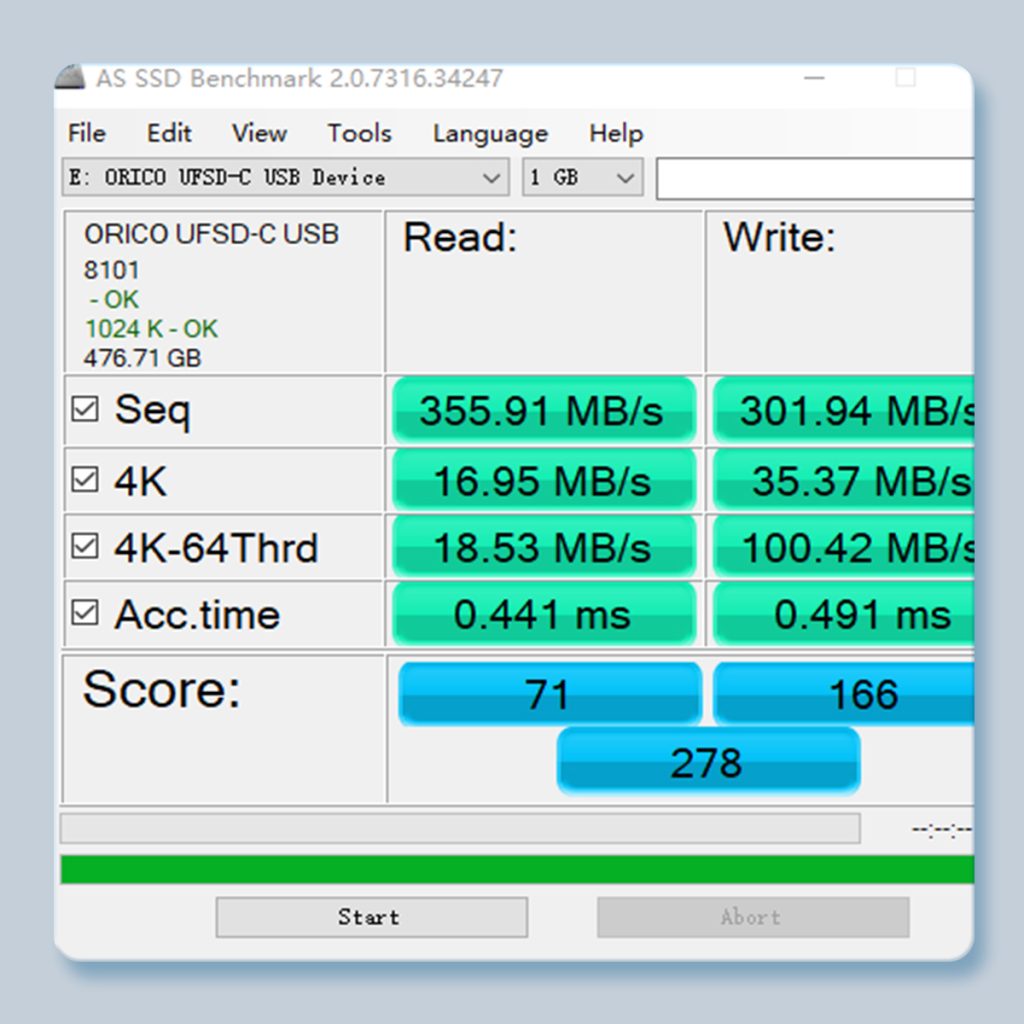
This product uses a high-speed USB drive as the system carrier (ordinary USB drives cannot run Windows smoothly):
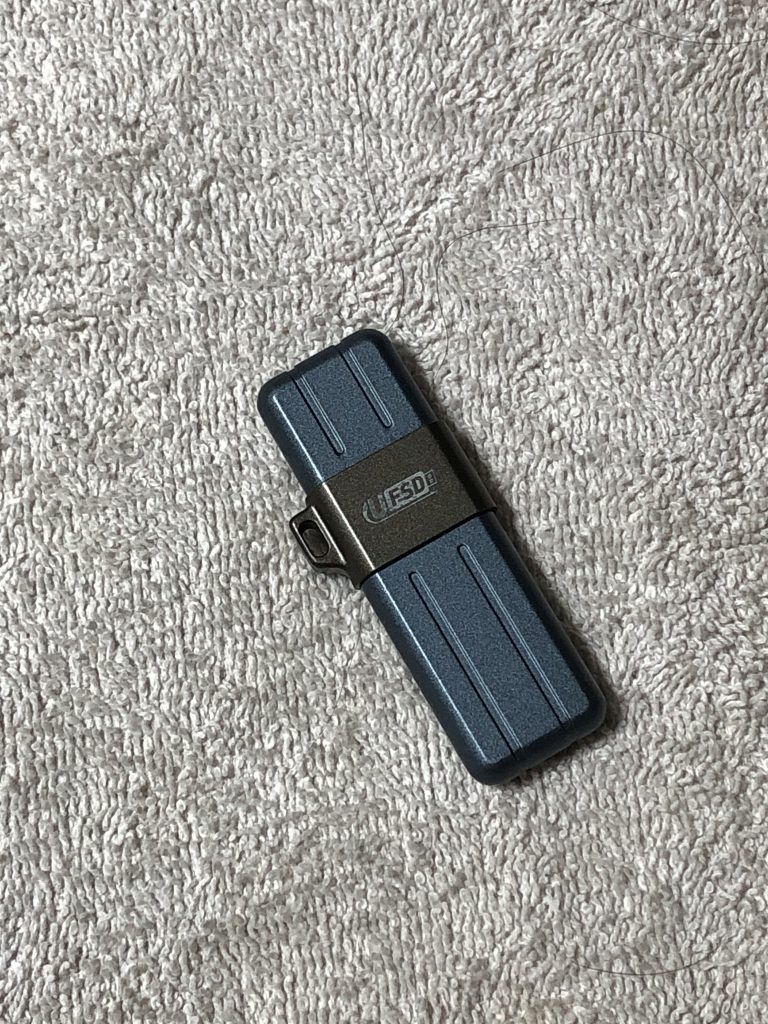
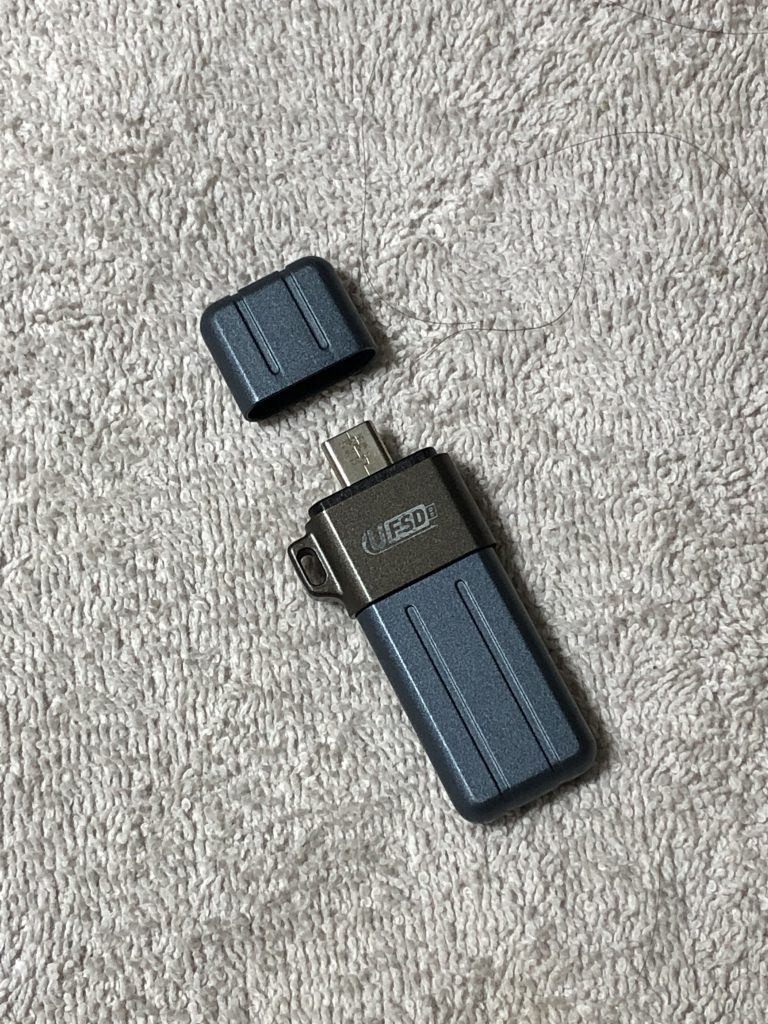
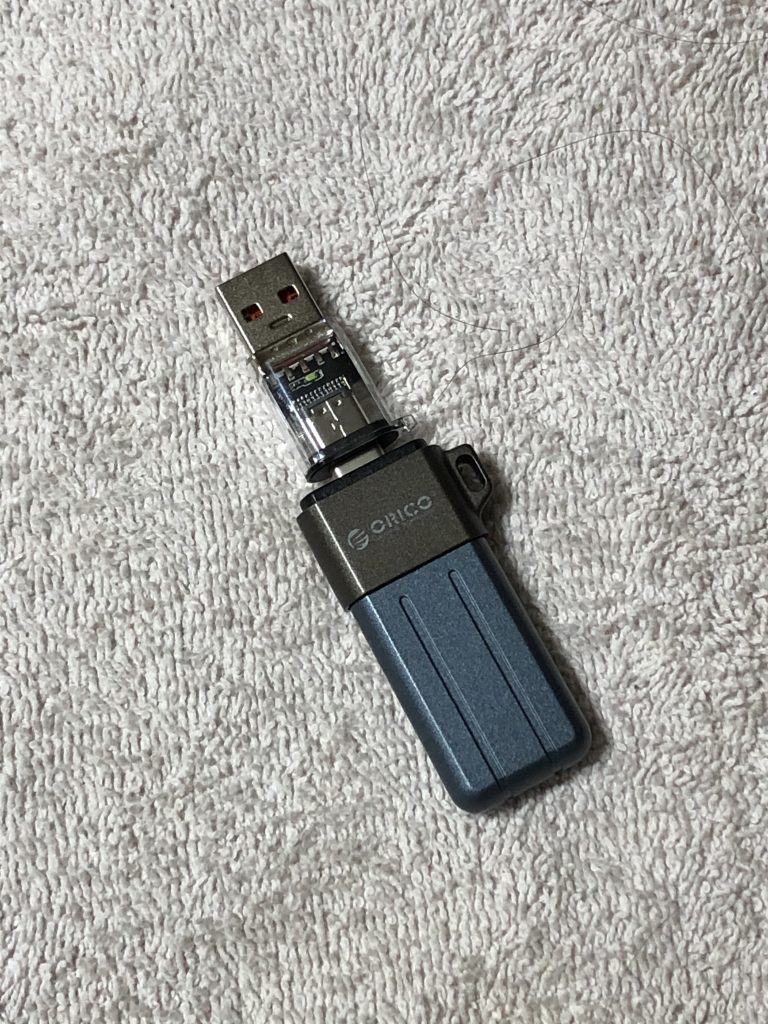
● Model: ORICO UFSD-X
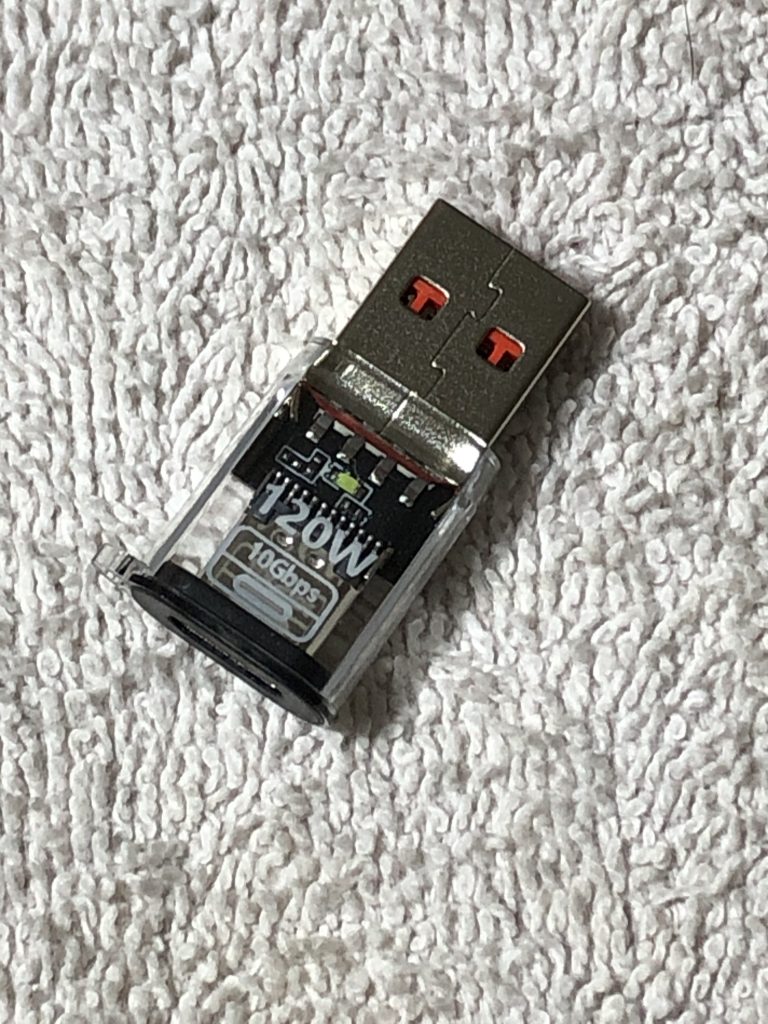
● Interface: USB-C
● Protocol: USB 3.2 Gen1
● Read Speed: Approx. 411 MB/s
● Write Speed: Approx. 353 MB/s
● Housing: Zinc Alloy
● Capacity: 64 GB
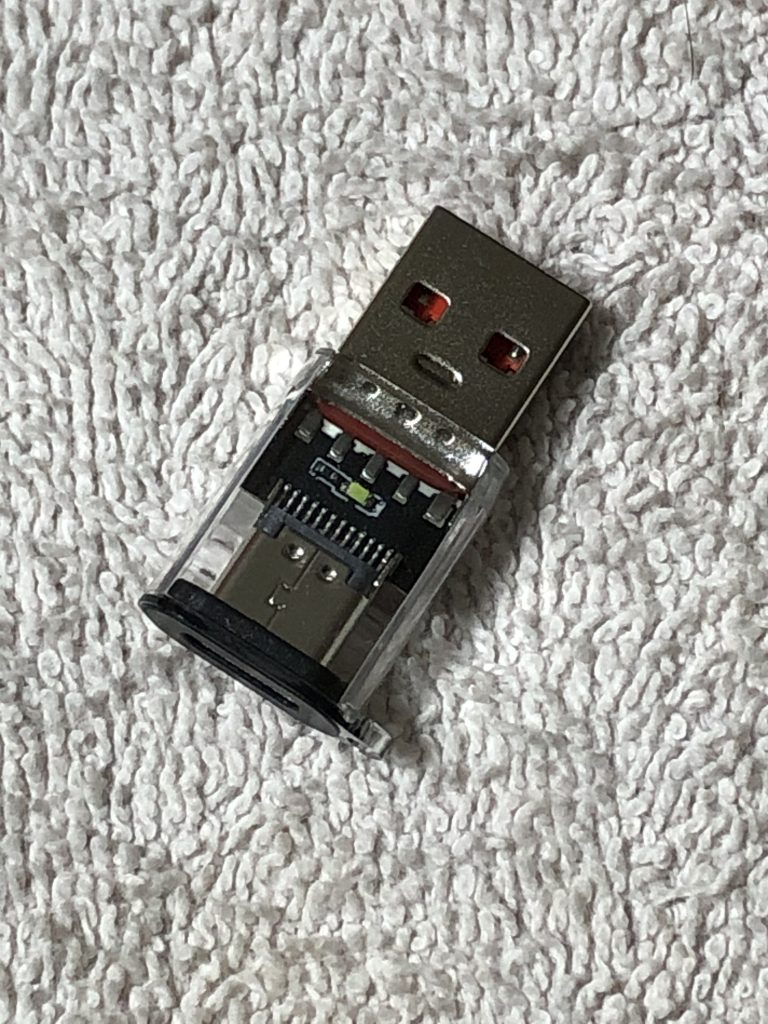
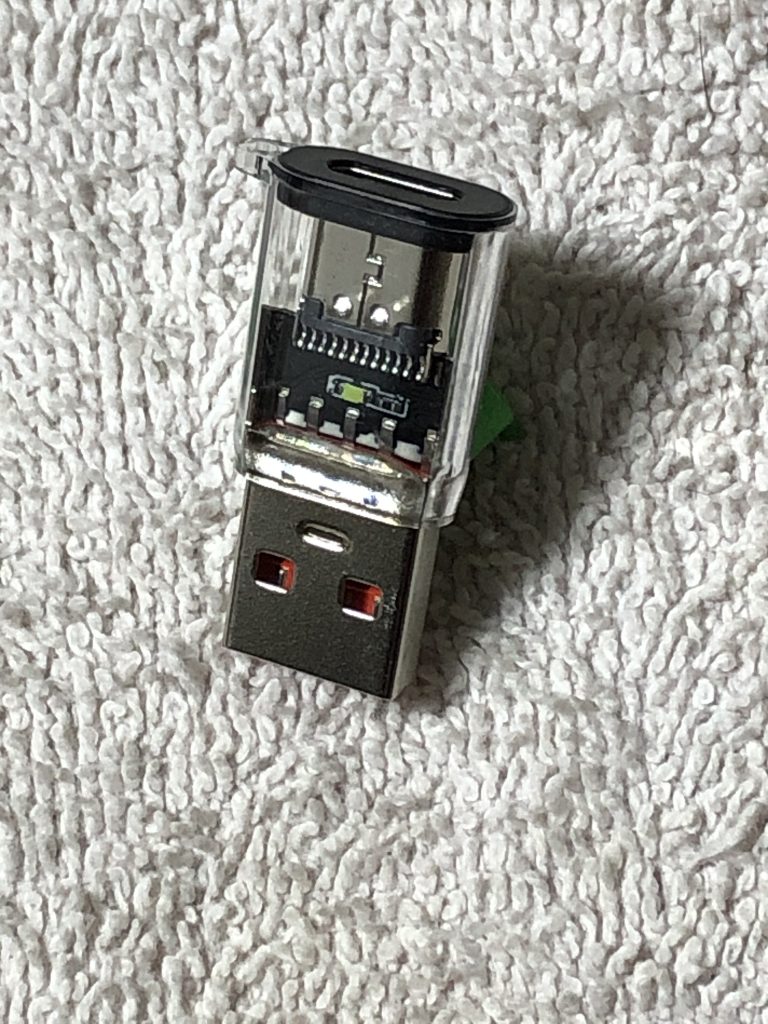
● Includes USB 3.2 adapter (Type-A male to Type-C female)
Instructions for Use (Brief Steps)
1. Insert the Portable Windows 10 System USB Drive
Make sure the computer is completely powered off. Insert the USB drive into a USB port (USB 3.0 or above is recommended).
2. Power On and Select USB Boot
It is recommended to use Boot Menu to start, which does not require modifying BIOS settings and is safer and more convenient.
● When powering on the computer, press the Boot Menu key (such as F12 / ESC / F9, etc.) to enter the Boot Menu.
Note: The Boot Menu key varies by computer model. Common keys include F8, F11, F12, or ESC. You may try them directly or search online for your specific model’s Boot Menu key.
● In the Boot Menu, select the USB drive as the boot device.
● Choose the USB boot option corresponding to the current firmware boot mode (UEFI or Legacy).
Note: Please confirm the computer’s current firmware boot mode (UEFI or Legacy) in advance. Most newer computers support both modes and are set to UEFI by default.
For detailed instructions, refer to:
Step-by-Step Guide to Installing Windows 10 and Office 2007
→ Windows 10 Installation Guide.docx
→ Section: Preparing for Installation: Set USB as Boot Device
3. Installing Drivers
Windows 10 automatically loads drivers for most common hardware (such as sound cards, network cards, Bluetooth, etc.). However, for devices like graphics cards and chipsets, only basic drivers may be loaded, and their performance or functionality might be limited. In this case, it is recommended to use the SDI Driver Installation Tool to install the manufacturer-specific drivers.
● After entering the system desktop for the first time, double-click \SDI Lite\SDI_R2408.exe to run the built-in SDI driver installation tool.
● The tool will automatically scan the computer hardware and list recommended drivers.
● Select the drivers you wish to install, click “Install,” and wait for completion.
For detailed instructions, refer to:
Step-by-Step Guide to Installing Windows 10 and Office 2007
→ Installing Drivers.docx
→ Section: Installing Drivers
Driver Instructions
● The SDI Driver Installation Tool includes network drivers. If Windows fails to load a network driver and cannot connect to the internet, install the network driver first using the SDI tool, then connect to the internet.
● Installing other drivers (such as graphics drivers) usually requires an internet connection. The program will automatically download the required drivers.
● Downloaded drivers are saved in the built-in driver library and do not need to be downloaded again when the same drivers are required in the future.
● Once drivers are installed on a particular computer, they do not need to be reinstalled the next time you boot that same computer using this system.
Usage Precautions
● It is recommended to use a USB 3.0 or higher port (usually blue) for optimal performance.
● The overall system performance is slightly slower than a regular SATA SSD, but it’s still sufficient for smooth office work and everyday use.
● USB 2.0 ports are supported but system responsiveness will be slower.
● Some older computers (around pre-2012 models) have incomplete USB 3.0 support, resulting in lower data transfer speeds that may affect system performance.
● Do not remove the USB drive while the system is running to avoid system crashes or data loss.
Portable Windows 10 USB System
— Plug & Play | Standalone System
Product Description
This is a fully functional Windows 10 system running from a USB drive, which can be booted on any compatible computer without installation and does not affect the existing operating system. Simply plug in the USB drive, select it as the boot device, and instantly access a fully independent Windows desktop. You’re free to install commonly used software, save files, and customize settings on this system, just as you would on a regular PC. It comes pre-installed with office software and PDF tools, allowing you to handle document editing, spreadsheets, and PDF modifications for everyday work needs. Whether traveling, on business trips, or temporarily using someone else’s computer, you can quickly access a familiar work environment anywhere.
Product Features
● A complete native Windows 10 system
● Boot & Go – start directly on compatible computers
● Runs independently without affecting the existing operating system or data
● Suitable for office work, internet browsing, and temporary use scenarios
Use Cases
– Use your own operating system on any compatible computer while traveling or on business trips
– Maintain a consistent working environment when switching between different computers
– Use on public or shared computers without leaving traces or personal data behind
– As a backup system for OS failures or emergency situations
– For system recovery or backing up important data when your main system is damaged
System Information
Windows 10 Pro 64-bit (Version 21H2, Build 19044.1288)
Specifications
● System Support
Supports both BIOS and UEFI boot modes, compatible with new and old computers
Runs independently without affecting the existing system
● Driver Support
Integrated SDI driver tool for automatic hardware detection and driver installation
● Office Software
Microsoft Office Professional 2007 pre-installed
(Word, Excel, PowerPoint, Outlook, Access, Publisher)
● PDF Tools
Adobe Acrobat XI Pro 11.0.23 pre-installed
Supports PDF editing, conversion, merging, splitting, and OCR recognition
● Storage Medium
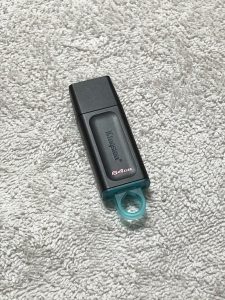
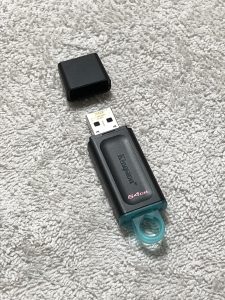
Kingston DataTraveler 64GB USB flash drive
Usage Instructions (For reference before purchase)
1. Boot and System Access
Ensure USB boot is enabled on your computer (usually enabled by default).
You can first try the steps below to see if the USB boot option appears. If it does not appear, enter the BIOS/UEFI settings to enable USB boot.
● Insert the USB drive
With the computer powered off, plug in the USB drive. It is recommended to use a USB 3.0 port (blue) for faster performance.
● Select USB boot
No need to modify BIOS, simply use the boot menu:
– Press the boot menu key repeatedly during startup (commonly F12, F11, ESC, F9; may vary by PC).
– Find the USB drive (e.g., KingstonDataTraveler 3.00000).
– Select the boot mode and press Enter:
– UEFI (for most modern computers, approx. 2013 and later)
– Legacy / BIOS (for older computers)
If unsure, select UEFI first.
● Enter the system
After entering the desktop, most devices (keyboard, mouse, network, etc.) will be automatically recognized and ready to use.
Some hardware (such as graphics or chipset components) may require device-specific drivers to take full advantage of hardware performance.
When setting the display resolution, if you find that the resolution options are limited or incomplete, it is usually because the dedicated display driver is not installed. Installing the driver should resolve the issue.
Quick tip:
In most cases, no additional configuration is required to boot from USB.
If the USB option is not shown, enter BIOS to enable USB boot.
If unsure, you can take a photo and send it to me for assistance.
2. Driver Installation and Instructions
Run the built-in SDI tool to install drivers:
● Run SDI_R2408.exe in the SDI Lite folder on the USB drive.
● The program will automatically detect the devices on the PC and list the drivers available for installation.
● Select the drivers you want to install, then click Install to begin installation.
Driver Notes:
● Network drivers are pre-installed. If there is no internet connection, install the network driver first.
● Other drivers such as graphics and chipset drivers etc. require an Internet connection to download the first time they are installed using the SDI tool.
● Downloaded drivers will be saved locally and can be reused without downloading again.
3. Notes and Precautions for Use
● The computer must support a 64-bit (x64) processor.
● USB 3.0 or higher ports (blue) are recommended for better performance.
● USB 2.0 is supported but may result in slower performance.
● Compared to a hard drive system, booting into the desktop from a USB drive may take longer, which is normal.
● After entering the desktop, system performance is sufficient for office work, web browsing, and video playback.
● Do not remove the USB drive during use, as this may cause system errors.
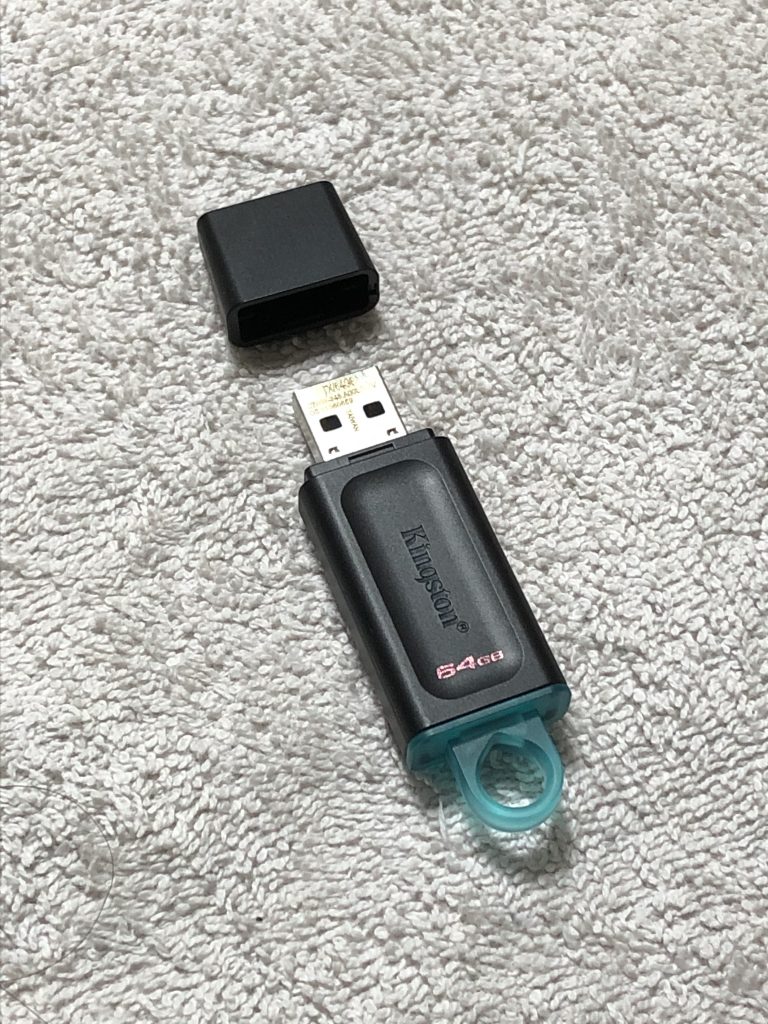
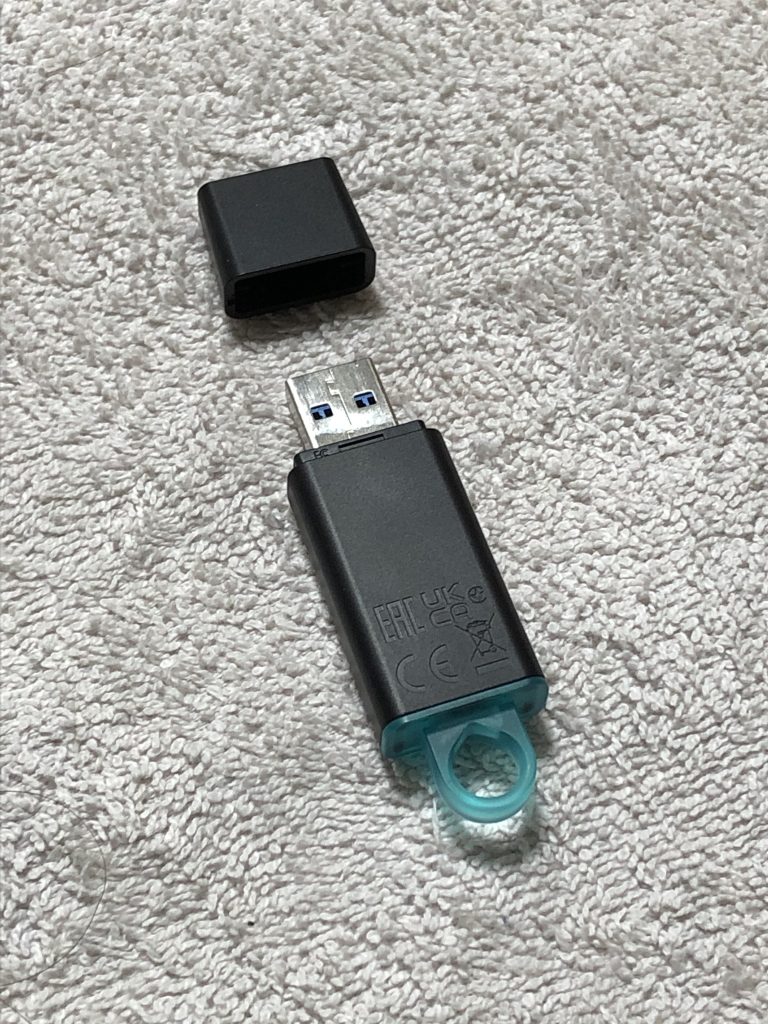
Product Listings & Sales Channels
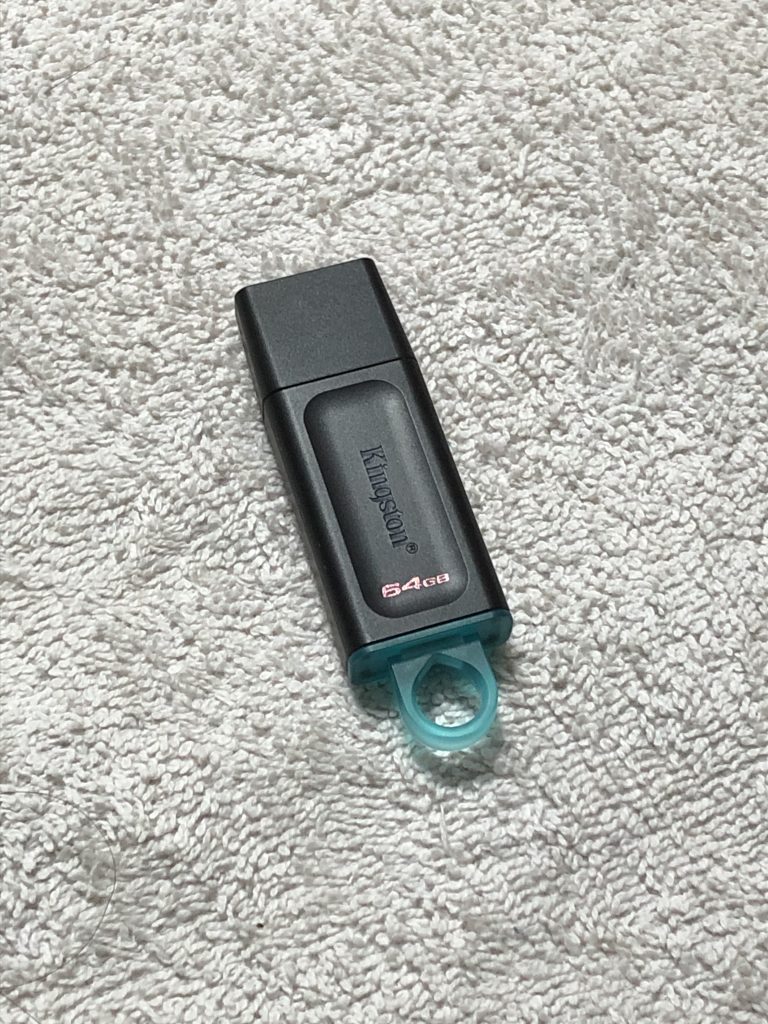
Windows 10 Installation USB Drive (Incl. Office 2007 + Drivers)
Purchase Page
https://gs.studydiy.cloudns.ch/product/windows-10-installation-usb-drive-incl-office-2007-drivers/
https://www.ebay.ca/itm/157880672889
https://www.ebay.com/itm/157880672889
Other Listings
https://www.kijiji.ca/v-view-details.html?adId=1729366833
https://toronto.craigslist.org/mss/sys/d/mississauga-windows-10-installation-usb/7930019431.html
https://www.facebook.com/marketplace/item/1283833163509944/
https://forsale.yorkbbs.ca/detail/computer/f084fc83-5208-4b03-9e53-c0c27f6d8a88
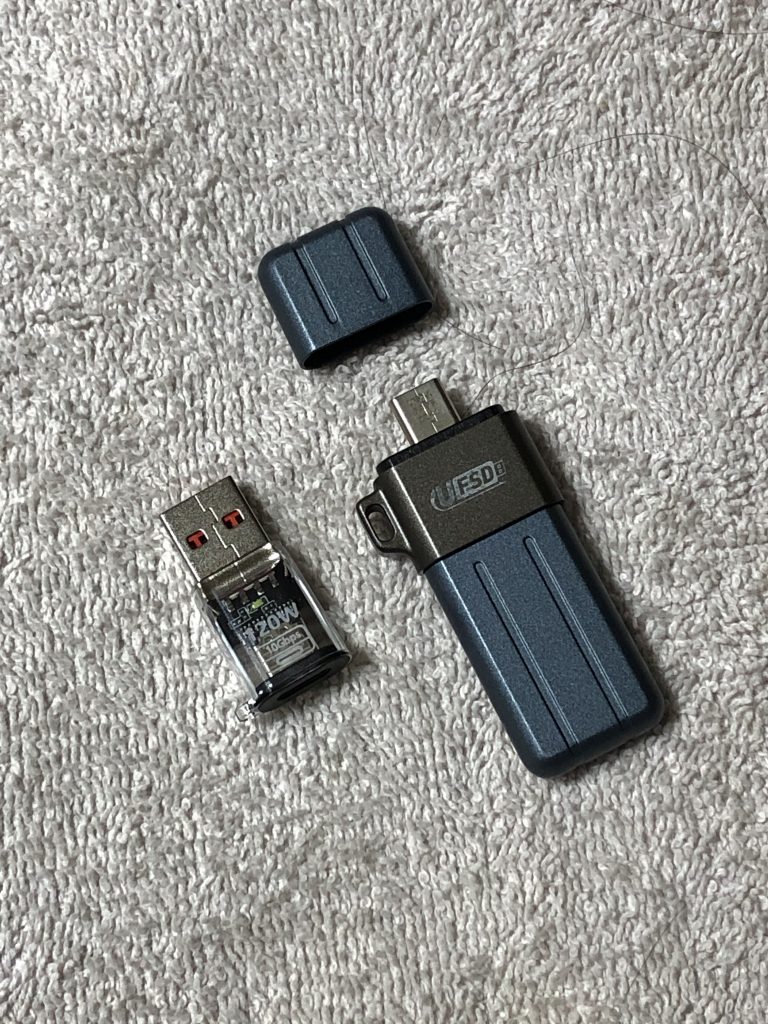
Windows 10 Portable System
—Put Your Computer in Your Pocket
Purchase link:
https://gs.studydiy.cloudns.ch/product/windows-10-portable-system-put-your-computer-in-your-pocket/
Listing URL:
https://www.kijiji.ca/v-view-details.html?adId=1733600121
https://toronto.craigslist.org/tor/sys/d/mississauga-windows-10-portable-system/7917205550.html
https://forsale.yorkbbs.ca/detail/computer/2d78e2ba-a15f-499d-b966-fc00bf2c6eee
Portable Windows 10 USB System
— Plug & Play | Standalone System
Purchase Page
https://gs.studydiy.cloudns.ch/product/portable-windows-10-usb-system-plug-play-standalone-system/
https://www.ebay.ca/itm/157909397376
https://www.ebay.com/itm/157909397376
Other Listings
https://www.kijiji.ca/v-view-details.html?adId=1736538235
https://toronto.craigslist.org/mss/sys/d/mississauga-portable-windows-10-usb/7930021424.html
https://www.facebook.com/marketplace/item/1528941668803532/
https://forsale.yorkbbs.ca/detail/computer/c8ad5084-bf38-4943-aca3-a03d6b41e70a
VMware Workstation 15.5.7 Pro
Download Trial Version
https://mega.nz/file/xYMEUJ7D#_Zl8wQx1EGzz34h7_Lm7ngQiykowh6jWppAbLiCf6xs
Purchase Page
https://gs.studydiy.cloudns.ch/product/vmware-workstation-15-5-7-pro/
Other Listings
https://www.kijiji.ca/v-view-details.html?adId=1735776442
https://toronto.craigslist.org/tor/sys/d/mississauga-vmware-workstation-1557-pro/7930018582.html
https://forsale.yorkbbs.ca/detail/others/5e2ee5c5-242b-4c2d-8dc8-03191ad415c5

Microsoft Office 2007
Download Trial Version
https://mega.nz/file/AIEgzTqA#qGvgbqei2Fq41HUiB3e4GZk4uVN26g1wJMw1wQu7rY0
Purchase Page
https://gs.studydiy.cloudns.ch/product/microsoft-office-2007/
Other Listings
https://www.kijiji.ca/v-view-details.html?adId=1735777472
https://toronto.craigslist.org/tor/sys/d/mississauga-microsoft-office-2007/7930018237.html
https://forsale.yorkbbs.ca/detail/others/2a54b755-1a78-41df-ae04-dd59b75eec5c
Adobe Acrobat XI Pro 11.0.23 (multilingual)
Download Trial Version
https://mega.nz/file/ZBN22DAa#11ryD5scMMrir5yRBh-zrM0L9_4rhCyDAhad2pJ_Crs
Purchase Page
https://gs.studydiy.cloudns.ch/product/adobe-acrobat-xi-pro-11-0-23/
Other Listings
https://www.kijiji.ca/v-view-details.html?adId=1735777908
https://toronto.craigslist.org/tor/sys/d/mississauga-adobe-acrobat-xi-pro/7930018009.html
https://forsale.yorkbbs.ca/detail/others/b51e1ad2-71da-4e21-b01a-668aa18e9de4
Photoshop CS3 10.0.1 中文版
Download Trial Version
https://mega.nz/file/EFcUCDYT#t7bhdRHJT7i4TG05yJAAq_akhyjlXFtQy0aIYzrvEfE
Purchase Page
https://gs.studydiy.cloudns.ch/product/photoshop-cs3-10-0-1-%e4%b8%ad%e6%96%87%e7%89%88/
Other Listings
https://www.kijiji.ca/v-view-details.html?adId=1732298522
https://toronto.craigslist.org/tor/sys/d/mississauga-photoshop-cs-chinese-version/7926934240.html
https://forsale.yorkbbs.ca/detail/others/956f84dd-0c94-4f76-809c-3ed54ad9f964
Elementor Pro v3.22.1 + Elementor v3.22.2 Bundle Plugin for WordPress (GPL)
Purchase Page
https://gs.studydiy.cloudns.ch/product/elementor-pro-v3-22-1-elementor-v3-22-2-bundle-plugin-for-wordpress-gpl/
https://www.ebay.ca/itm/157591361533
https://www.ebay.com/itm/157591361533
Other Listings
https://www.kijiji.ca/v-view-details.html?adId=1732203781
https://toronto.craigslist.org/tor/sys/d/mississauga-elementor-pro-v3221-bundle/7926938222.html
https://forsale.yorkbbs.ca/detail/others/0d03992d-6d83-4e4a-b6c6-009306531fa7
Elementor Pro v3.34.0 + Elementor v3.34.0 Bundle Plugin for WordPress (GPL)
Purchase Page
https://gs.studydiy.cloudns.ch/product/elementor-pro-v3-34-0-elementor-v3-34-0-bundle-plugin-for-wordpress-gpl/
https://www.ebay.ca/itm/157591385002
https://www.ebay.com/itm/157591385002
Other Listings
https://www.kijiji.ca/v-view-details.html?adId=1732205227
https://toronto.craigslist.org/tor/sys/d/mississauga-elementor-pro-v3340-bundle/7926937763.html
https://forsale.yorkbbs.ca/detail/others/180f3099-0c12-4d09-b267-15c70b1d653a

Yoast SEO Premium v26.6 + Yoast SEO v26.6 Bundle Plugin for WordPress (GPL)
Purchase Page
https://gs.studydiy.cloudns.ch/product/yoast-seo-premium-v26-6-yoast-seo-v26-6-bundle-plugin-for-wordpress-gpl/
https://www.ebay.ca/itm/157591391939
https://www.ebay.com/itm/157591391939
Other Listings
https://www.kijiji.ca/v-view-details.html?adId=1732206117
https://toronto.craigslist.org/tor/sys/d/mississauga-yoast-seo-premium-v266/7926936889.html
https://forsale.yorkbbs.ca/detail/others/5afafb33-55d7-4b21-a55c-22234c931c20